How to lock down Cloud Run sites by email domain (without touching code)
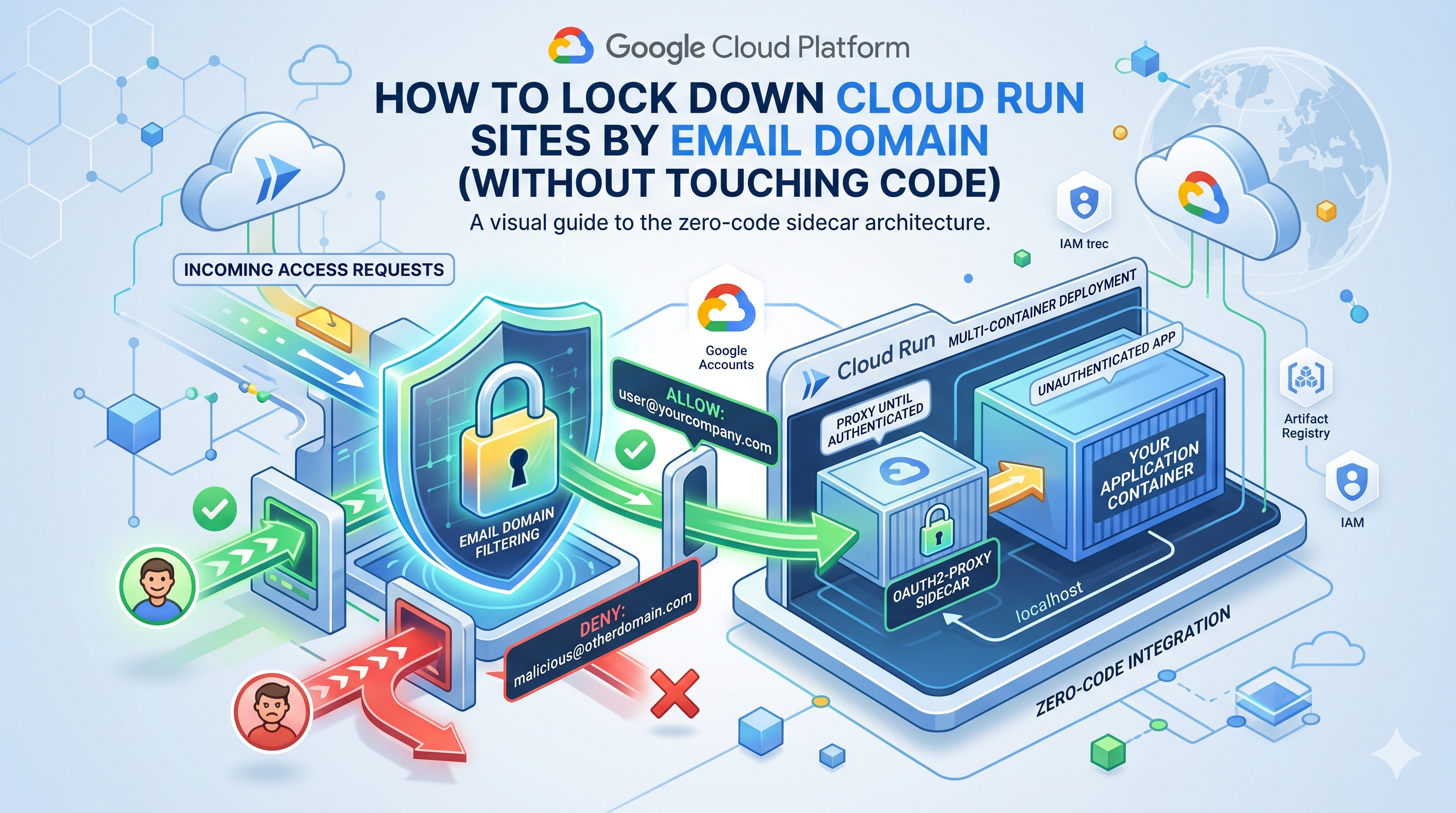
If you build web apps on Google Cloud Run, you eventually run into the auth problem. You are building an internal tool for your team, a staging environment for QA, or a demo for a client. You need to put it online, but you cannot leave it open to the public. You just want anyone with a @yourcompany.com or @clientcompany.com Google account to log in and see it.
You have three ways to solve this in GCP. Each approach comes with specific trade-offs depending on your scale, budget, and whether your application needs to know who is logging in.
The three options
1. Identity-Aware Proxy (IAP) + External Load Balancer
This is the standard Google Cloud architecture, and it is the gold standard for tightly controlled production or high-scale workloads. You put an external HTTPS load balancer in front of Cloud Run, turn on IAP, and restrict access by IAM policy. With IAP, Google’s global edge network handles authentication, DDoS protection, Web Application Firewall (WAF) rules, and centralized audit logging before traffic ever reaches your Cloud Run instances.
Trade-offs: You need a custom domain name because IAP requires a managed SSL certificate that matches the hostname. There is also an ongoing infrastructure cost for the external load balancer. For a single mission-critical enterprise app, that cost is negligible. But if you are spinning up dozens of internal micro-sites or temporary client demos, paying dedicated load balancer fees for every service adds up.
2. Code-level auth middleware
You write OAuth middleware directly into your application (or wrap your static site in an Express server). You verify the Google ID token, check the email domain, and manage session cookies in your own process.
Trade-offs: This option is excellent if your application needs awareness of the individual user. Because the auth logic lives inside your process, you get both authentication (verifying they are allowed to access the site) and authorization (determining which specific features or data they are allowed to see). While the actual auth code is not difficult to write and templates are readily available, it is still additional code you have to maintain across every language and framework your team deploys.
3. The oauth2-proxy sidecar
Cloud Run supports multi-container deployments (sidecars). You run an open source reverse proxy called oauth2-proxy in a sidecar container right alongside your application container inside the same Cloud Run service.
Cloud Run sends all incoming web traffic to the proxy. If the user does not have a valid session cookie, the proxy redirects them to Google Sign-In, verifies their email domain against an allow-list, sets a cookie, and forwards the plain HTTP request to your app. Your application listens on localhost, receives normal unauthenticated HTTP requests, and has no idea the proxy even exists.
Trade-offs: This solution is perfect for low-volume utilities, staging environments, or proof-of-concepts where you want to publish any container and lock down access immediately for zero cost, without managing custom domains or load balancers. However, because the proxy strips auth headers before forwarding the request, your application container remains completely unaware of the individual accessing it.
Focusing on the sidecar approach
While IAP is well-documented by Google and code-level middleware depends on your specific programming language, the sidecar approach represents a powerful, language-agnostic middle ground for teams wanting zero-cost domain restriction without touching application code. The remainder of this post explores how to set up the sidecar architecture and the major mechanics behind it.
How the sidecar approach works
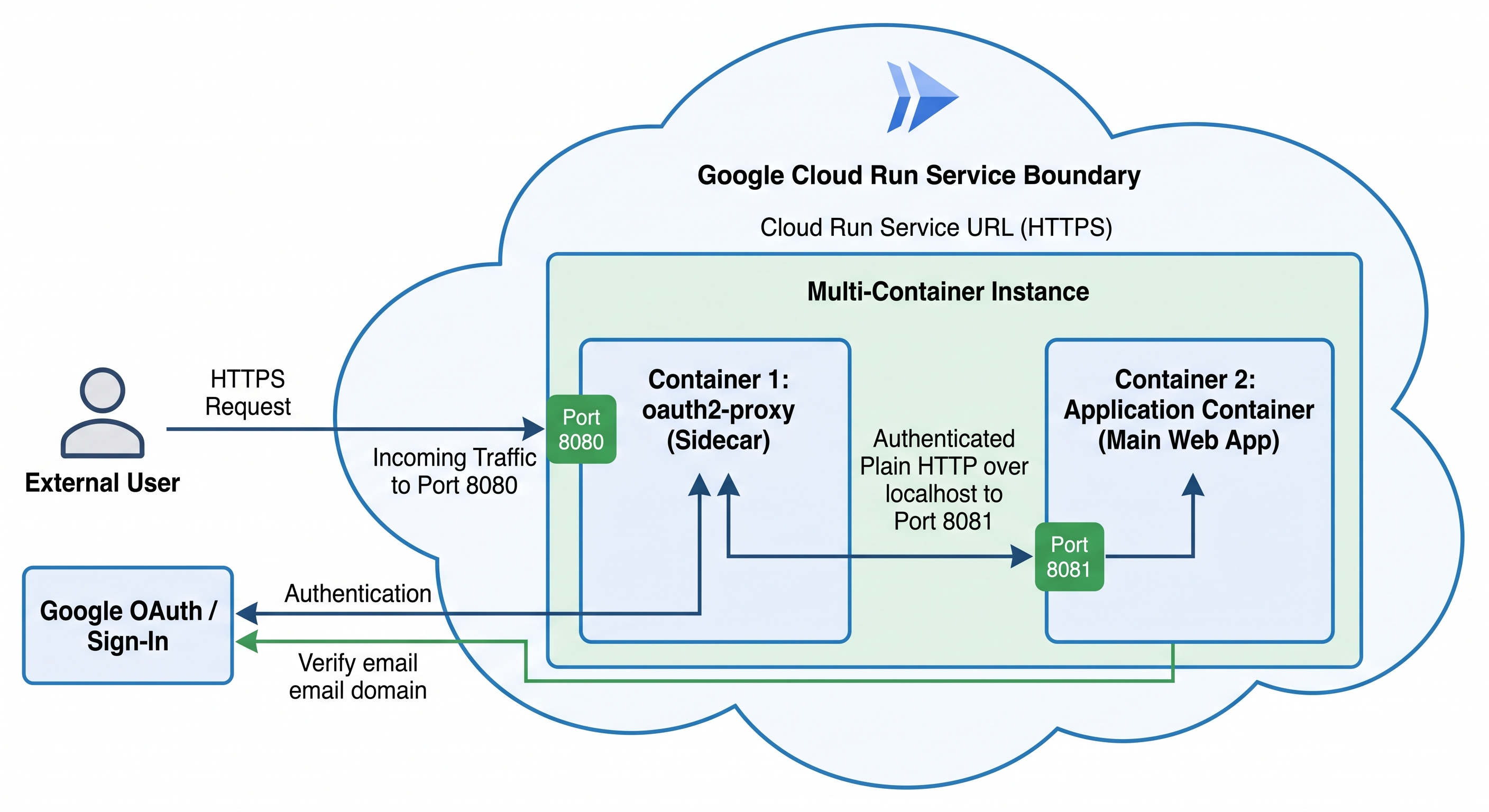
If you want to deploy this yourself, we maintain a complete setup guide, automation script, and validation harness in our CloudRunAuth repository folder.
Here are the major steps involved and why you need them.
Step 1: Configure the OAuth consent screen
You have to tell Google how your login page should behave. The biggest trap here is choosing between Internal and External user types.
If you choose Internal, only people inside your exact Google Workspace organization can log in. If you are a consultant building a site for a client and you want to allow both @yourconsultancy.com and @clientcompany.com, an Internal consent screen will block the client at Google’s login prompt before your proxy ever sees the request. Setting it to External lets anyone authenticate with Google, allowing your sidecar proxy to handle the actual domain filtering downstream.
Step 2: Create OAuth client credentials
You generate a Client ID and Client Secret for your Cloud Run service. You also have to register your Authorized Redirect URI (the callback path). oauth2-proxy expects https://<your-cloud-run-url>/oauth2/callback.
Cloud Run services often have two valid URLs: the legacy URL (*.a.run.app) and the newer deterministic URL (*.<project-number>.<region>.run.app). Because oauth2-proxy dynamically builds the callback URL based on what is in the user’s browser address bar, you should register both URLs in your OAuth client to prevent redirect_uri_mismatch errors.
Step 3: Proxy quay.io through Artifact Registry
Cloud Run has a strict security boundary: it only pulls container images from Google Container Registry (gcr.io), Artifact Registry (*.pkg.dev), or Docker Hub (docker.io).
The official oauth2-proxy image lives on quay.io, which Cloud Run rejects. To fix this without manually rebuilding images, you create an Artifact Registry remote repository in your GCP project that acts as a pull-through cache for quay.io.
Step 4: Deploy the multi-container service YAML
You deploy a Knative service YAML defining both containers. The proxy container binds to port 8080 (where Cloud Run sends traffic) and takes your OAuth client details, cookie secret, and allowed email domains as startup arguments. Your application container binds to port 8081.
Cloud Run requires a startup probe on the application container and an explicit container dependency annotation (run.googleapis.com/container-dependencies). This ensures Cloud Run starts your app and confirms it is healthy before starting the sidecar proxy.
Try it in your project
If you want to test this architecture in your own GCP project without touching your real applications, check out our CloudRunAuth repository folder.
The repository contains extensive technical details in the README.md, covering advanced troubleshooting and deep dives into all three approaches. It also provides an automated helper script (setup-cloud-run-oauth.sh) to configure the sidecar proxy for you, along with a validation harness (validate-deployment.sh) that deploys a temporary hello-app service to prove the domain restriction works before you apply it to your own workloads.